
Armoury Crate Guide | Everything You Should Know Before Using It!
Are you setting up a new ASUS gaming rig? You have arrived at the perfect spot!
Armoury Crate is fantastic software for keeping a PC running smoothly. It is the best way to control every part of a modern system. Even after years of use, there are always new ways to make a setup look and feel better.On every new build, there are clever tricks to discover. It is a great feeling to finally sync lights and fans for the first time. Using this software to tune a CPU or pick colors is a blast. I have spent a lot of time testing these features to help you understand Armoury Crate better.
Are you ready for some epic PC tuning? Let’s get started!
Armoury Crate Guide : What Makes Armoury Crate So Powerful?
Armoury Crate acts as the central brain for the entire ASUS ecosystem. It is an incredible tool because it talks directly to the hardware. While basic apps only handle simple tasks, this one links with the motherboard and graphics card. It uses the ASUS System Control Interface to bridge the gap between the screen and the chips.
The software is modular. This means it only installs what is actually needed. When the ASUS Armoury Crate software opens, it looks for specific parts. If an ROG mouse is plugged in, it downloads the mouse tool. If a TUF laptop is active, it grabs those specific settings. These pieces are called SDKs. This design keeps a PC clean. I love how it prevents the system from feeling slow or cluttered with extra files.
The Armoury Crate software gives deep access to fan speeds and power limits. Users can watch heat levels in real time. This helps anyone understand how a PC handles stress. The layout is built for speed. Swapping from a quiet work mode to a fast gaming mode takes one second. It replaces old, messy apps with one clean home. This unity is why gamers love it. It gives you the keys to the machine. You can tune every small detail to fit a specific style. It remains a vital part of the ASUS experience.
Step-by-Step: How to Install and Set Up Armoury Crate
Setting up the ASUS Armoury Crate software is the best way to start your gaming journey. It is a simple process, but doing it right prevents errors.
1
The Installation Steps
First, visit the official download page. The Online Installer is the best choice for most people. It checks the PC and picks the right files automatically. Run the file as an admin. This ensures it has the power to add system drivers.
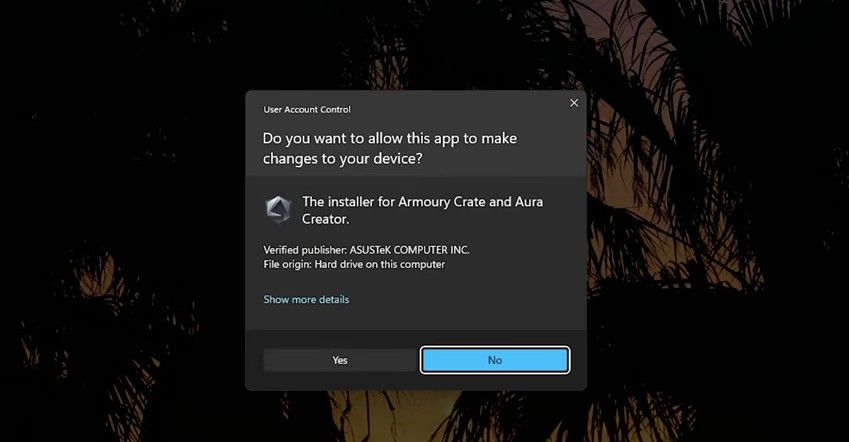
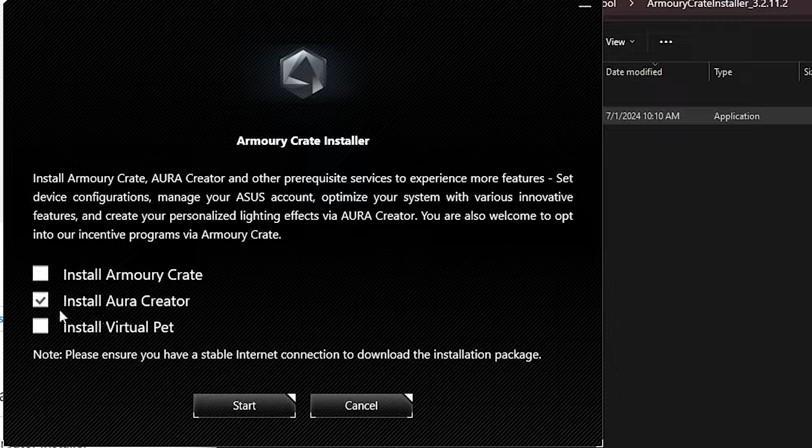
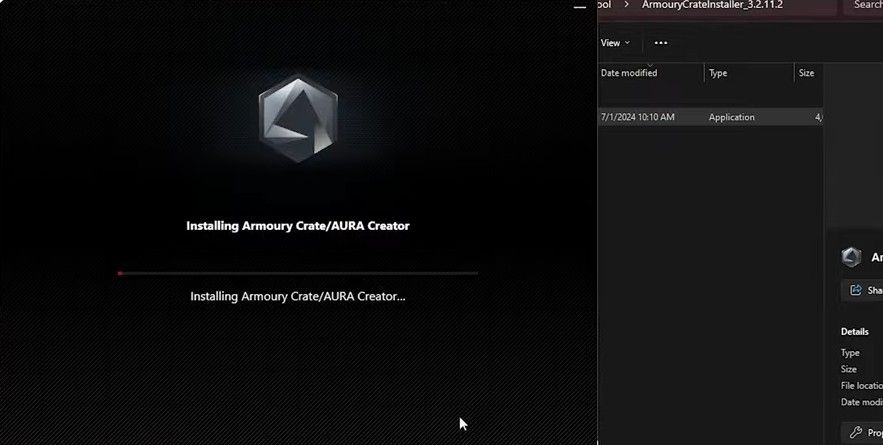
During the setup, the ASUS Armoury Crate software will ask about Aura Creator. This extra tool is excellent! It lets anyone design custom light patterns. Check that box to get the full experience. Once the bar hits 100%, you must restart the system. This allows the services to start talking to the hardware.
2
How to Connect Your Devices
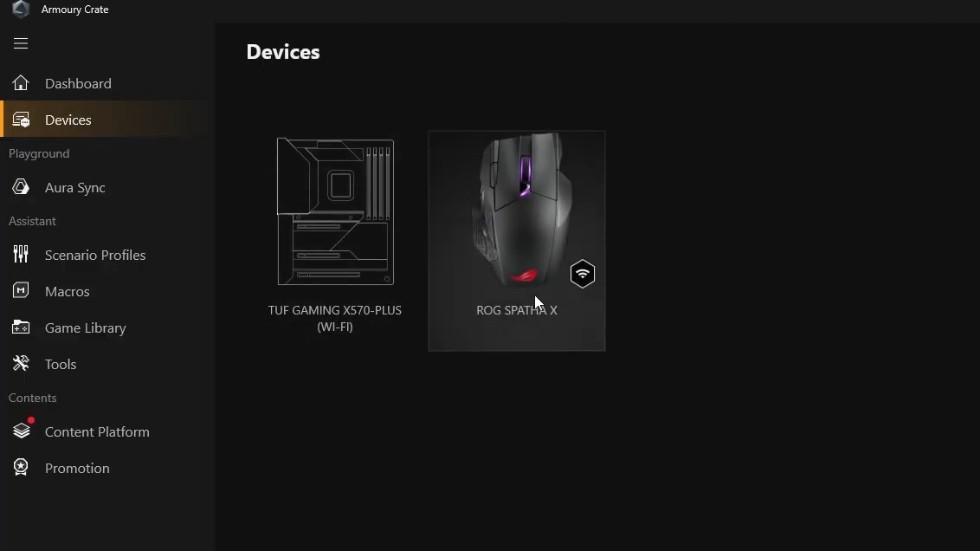
Connecting your gear is usually a breeze. The ASUS Armoury Crate software finds parts quickly. When you plug in a mouse or keyboard, a small message pops up. It tells the user a new device is ready. If a device stays hidden, try a different USB port. Sometimes a direct port on the motherboard works best.
Check the “Device” tab on the left. A list of parts should appear there. If something is missing, I know the Update Center might have a fix. New gear often needs a quick update to work with Armoury Crate.
3
Why Use an ASUS Account?
Creating an account is highly recommended. It is free and very helpful. When logged in, the Armoury Crate saves profiles to the cloud. This is a huge time saver. If a PC is reset, custom fan curves or light colors are not lost. Log back in and everything returns to normal.
An account also lets users track gear. It shows warranty dates and makes registering new parts easy. It even gives access to special game deals. The best part is the settings backup. Knowing that “Night Mode” and “Game Mode” are safe is a relief. It is a small step that offers great peace of mind.
Lace up those digital shoes and get those settings saved! Having a backup means anyone can play with the sliders without fear. If a mistake happens, I simply pull the old settings back down. It makes the whole experience much more fun.
Key Performance Features
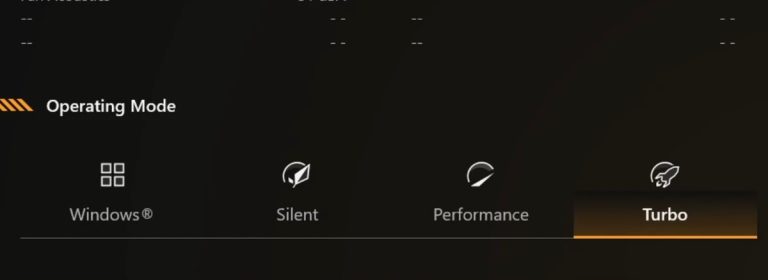
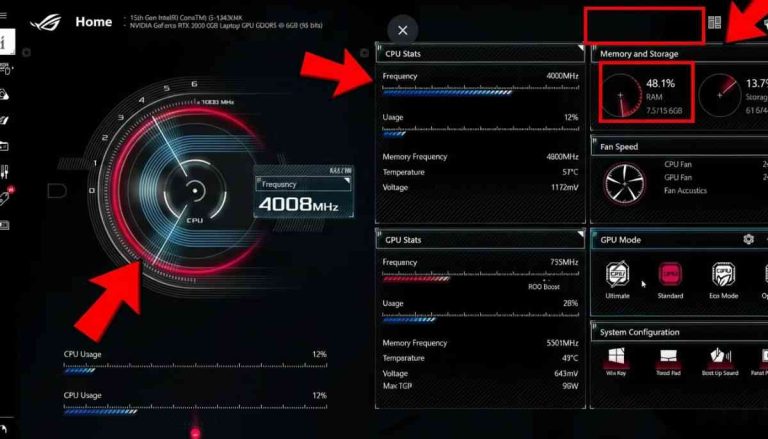
The home dashboard is where most users spend time. It shows everything about PC health. It displays CPU speed and GPU heat. The most famous parts of Armoury Crate software are the operating modes. These buttons change power and noise levels.
Choosing the Right Performance Mode
- Silent Mode: Best for late-night work. It keeps fans very quiet. It lowers power so a laptop stays cool and hushed.
- Performance Mode: The best pick for daily gaming. It balances speed and heat. Most games run great here without loud fan noise.
- Turbo Mode: Use this for the biggest games. It pushes wattage to the max. Fans will spin very fast. On a laptop, you must plug in the charger.
- Manual Mode: This is for the experts. Move sliders to pick power limits. Users can even draw fan curves on a grid. This decides exactly when fans should speed up.
Advanced Performance Tuning
The ASUS Armoury Crate software also offers AI overclocking. You can explore all core features in our complete Armoury Crate software overview. This smart tool learns about the PC. It looks at cooling and chip quality. Then, it picks the best speed. It is a great way to get more power without hard math.
For laptop gamers, GPU Mode is a big deal. Use Ultimate Mode to get every bit of speed. This uses the MUX switch to send the picture straight from the gaming card to the screen. If traveling, use Eco Mode. This turns off the big graphics card to save battery.
Viewing Real-Time Stats in Armoury Crate
The dashboard gives a live view of the system. It shows how much RAM is in use. It also displays fan RPM. This data helps a user know if a PC is working too hard. I think checking these stats while testing new games is a smart move. It helps find the perfect balance for any setup.
The layout is very clean. Everything is in the sidebar. The “Home” icon takes you back to main stats. The “Device” icon lets you tune a motherboard or laptop. The “Settings” icon is where updates happen.
Using these features makes a PC feel like a high-end sports car. The user is in the driver’s seat. You decide if you want a quiet ride or a fast race. The Armoury Crate software handles the complex parts. This makes it easy for anyone to enjoy a pro-level experience. Take some time to click through each mode. See how the fans react and how speeds change. It is the best way to learn what a machine can really do!
How Can You Customize RGB Lighting in Armoury Crate?
Adding color to a PC is a fun part of owning ASUS gear. Aura Sync handles this task. It lets a user pick one effect and apply it to every part. The mouse, keyboard, and case will all match.
Picking an Aura Sync Effect
Choose from many cool styles. Static keeps one color. Breathing makes lights glow and fade. Smart Mode is a top choice. This changes color based on heat. Green means cool, and red means hot. It is a great way to see how a PC is doing with a quick glance.
Using Aura Creator within Armoury Crate
For those who want to be artists, Aura Creator is the answer. This tool lets anyone make a custom light show. Drag effects across a map of the desk. A wave of blue light can start at a mouse and end at the PC. It uses a timeline just like a video editor. This lets a user time lights perfectly with music or a mood.
Save these looks as “Advanced Effects.” This lets a user swap a whole room’s look with one click. Making a “Night” look that is dim and a “Game” look that is bright is a great idea. It makes a room feel like a professional gaming studio.
Armoury Crate also supports Aura Sync Wallpaper. This makes a desktop background change colors to match the mouse and keyboard. It pulls a whole setup together. It looks amazing and is very easy to set up. Just pick a wallpaper and hit sync!
How Does Armoury Crate Help Your Gaming Experience?
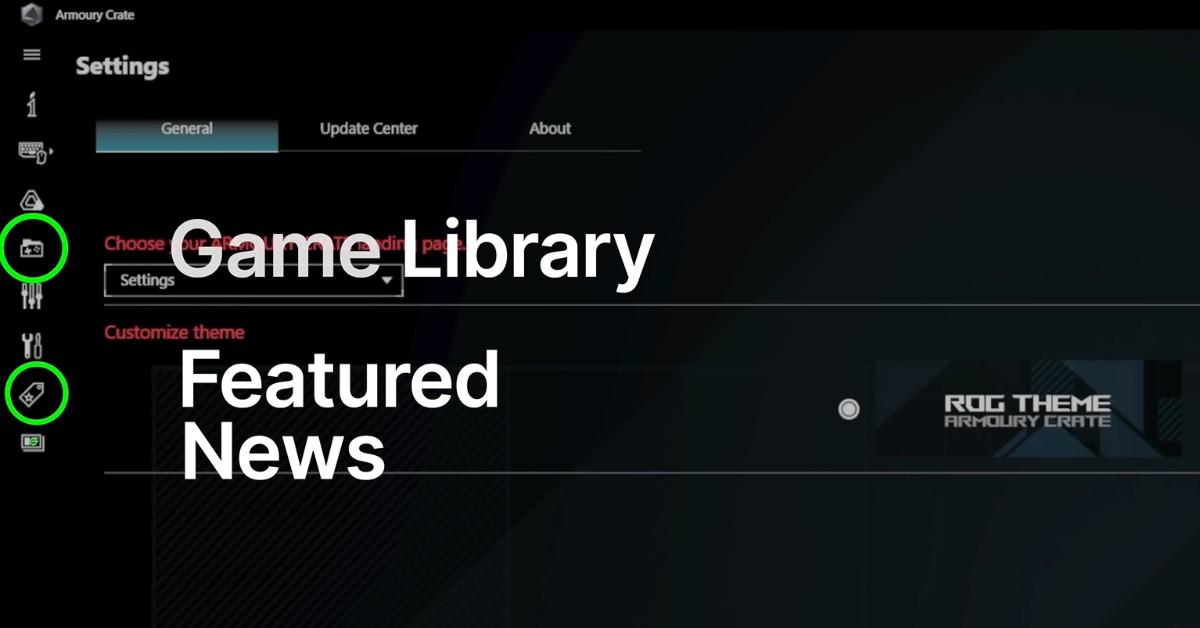
The ASUS Armoury Crate software does a lot more than tune fans. It also helps organize and see games better. The Game Library is a huge help. It finds games on Steam or Xbox and puts them in one list. Launch any game without looking for icons on a cluttered desktop.
Using GameVisual in Armoury Crate
The screen is vital for gaming. GameVisual changes monitor colors for different tasks.
- FPS Mode: This makes dark corners brighter. It helps a player see enemies hiding in shadows.
- Cinema Mode: This makes colors look rich and deep. It is perfect for watching movies.
- Eyecare Mode: This removes blue light. It helps eyes feel fresh during long nights.
Audio Tuning and Noise Cancellation
Armoury Crate also manages sound. If you use an ASUS headset, you can turn on Virtual 7.1 Surround Sound. This helps a player hear where footsteps are coming from. It also has two-way AI noise cancellation. This smart tool removes sounds like loud fans or keyboard clicks. Friends will only hear a clear voice. These tools give a big advantage in competitive games. Seeing and hearing better helps players win more.
I suggest checking GameVisual settings before starting a match. It only takes a second, but it makes a huge difference. Armoury Crate handles all the complex color and sound tuning. Just pick a favorite mode and start playing!
How Do Scenario Profiles Automate Your System?
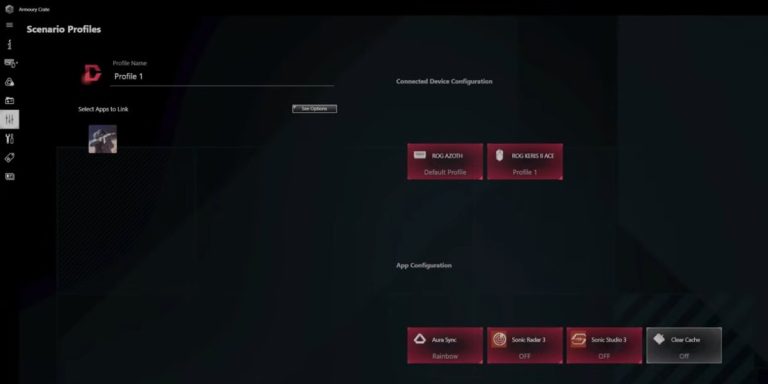
Scenario profiles offer the best way to save time. They let a PC change settings based on the active app. You can make rules for the computer. When a specific app opens, Armoury Crate follows those rules.
Creating a Custom Work Profile
You can set a rule that triggers when you open a web browser or office app. In this profile, you might set the mode to Silent, turn the lights to a soft white, and enable Eyecare Mode. Now, every time you start working, your PC instantly becomes a focused, quiet environment without you clicking a single button.
The Battle Profile for Hardcore Gaming
Scenario profiles offer the best way to save time. They let a PC change settings based on the active app. You can make rules for the computer. When a specific app opens, Armoury Crate follows those rules.
How Do You Customize Your Peripherals?
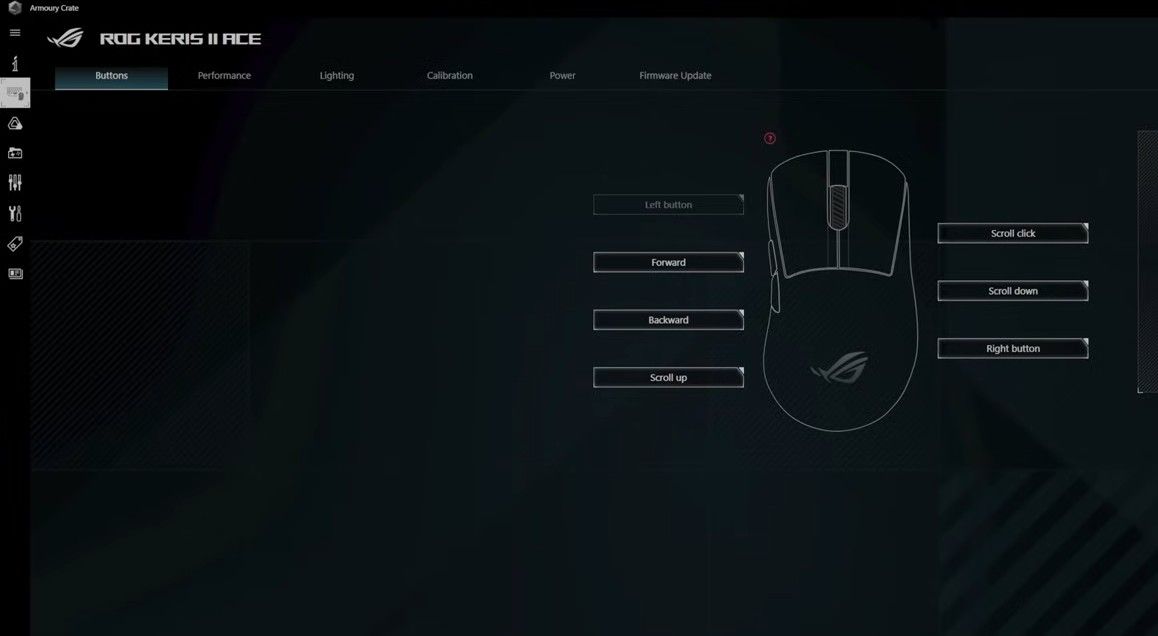
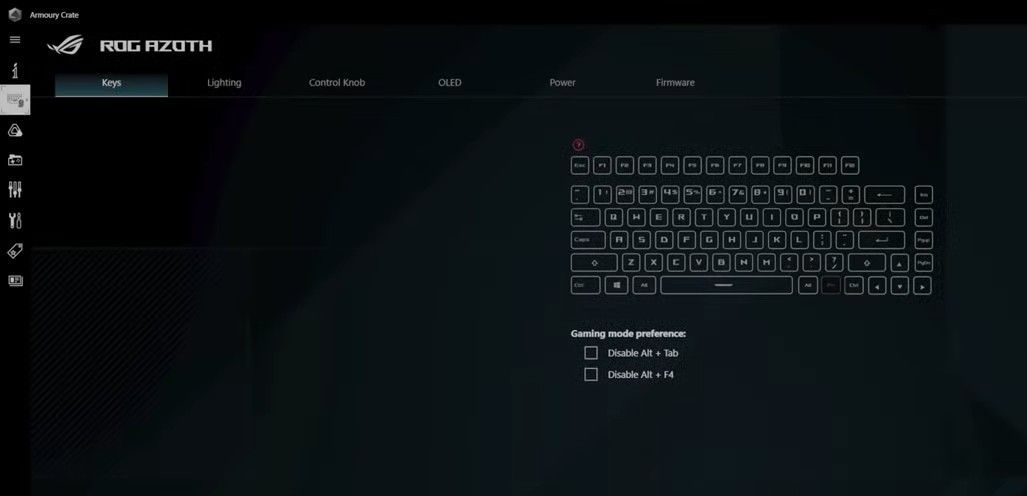
A mouse and keyboard are the main tools for gaming. Armoury Crate lets anyone tune them to fit a specific hand or style. Click the Device icon to see the connected gear.
Mouse Settings
Change DPI stages easily. This controls cursor speed. You can also pick a polling rate. A higher rate makes a mouse feel more responsive. Setting different DPI levels for different games is a pro tip.
Keyboard Macros
Keyboard settings offer deep customization. You can remap any key. A key can act as a “mute” button if you wish. You can also record macros. This saves a string of button presses. A complex combo can play back with one click. This helps in strategy games or repetitive work tasks.
Headset Control
If you use an ASUS headset, you can adjust the equalizer. This lets you boost bass or make treble clearer. AI Noise Cancellation is a world-class feature. It uses a smart brain to listen to a voice. It removes background noise like a loud fan or a barking dog. Your voice stays clear even in a loud room.
Mobile App Integration: Control Your System
The Armoury Crate mobile app is a fantastic way to watch on a PC. Download it on a phone and link it to the system. It turns a smartphone into a remote control.
Connecting a Phone
Linking is very easy. Open settings in the PC app and find the Mobile Connection tab. A QR code will appear. Open the app on a phone and scan that code. Connection is instant! Use Wi-Fi or Bluetooth to talk to the PC.
Why Use the App?
I love using a phone to watch PC stats during a game. Most games hide the desktop, so heat levels are hard to see. With the phone app, propping a phone on the desk lets anyone see stats clearly.
- Monitor Temps: See CPU and GPU heat levels.
- Change Modes: Tap a phone to switch from Silent to Turbo.
- Adjust Lights: Pick new colors without leaving a game.
- Check RAM: See if a background app is using too much memory.
The Armoury Crate mobile app is smooth and easy to use. It feels like a professional racing dashboard. It keeps a computer screen clear of distractions. All technical data stays on the phone. This is a great tip for streamers who want to monitor a system without blocking the view.
With this, you can also check for updates. It tells a user if a PC needs a new driver. This integration shows how ASUS wants gear to work together. It makes the whole experience feel modern and high-tech. If the mobile link has not been tried, a great feature is being missed. It is one of the best “hidden” parts of the software!
How to Keep Armoury Crate Up to Date
Keeping software fresh is the best way to avoid bugs. ASUS releases new updates quite often. These updates fix small glitches and add support for new games.
Using the Update Center
To find updates, click the Settings gear at the bottom left. Then, go to the Update Center. Click “Check for Updates.” A list of files that need to be refreshed will appear. These might be “SDKs” or “HAL” files. Clicking “Update All” ensures the whole system is current.
But why is it important?
New games often need new drivers to run well. Updates also help RGB lights stay synced. If a bug is noticed, the first step should be checking the Update Center. Most problems can be fixed by a simple update. If Armoury Crate is still not responding after updating, follow our guide on Armoury Crate not working issues. I have noticed that a quick update often resolves lighting glitches.
The ASUS Armoury Crate software might ask for a restart after an update. Do not skip this! It ensures new files load correctly.
Last Thoughts
Armoury Crate is an amazing tool that makes ASUS gear feel like a complete system. From tuning fans to picking colors, it puts power in the hands of the user. It automates a setup and keeps a PC quiet when needed.
Take some time to explore every tab. There are many ways to make gaming more fun. If a problem ever happens, do not worry! I suggest you read our Armoury Crate troubleshooting guide for quick fixes to common errors.
FAQs About Armoury Crate Software
Why is Armoury Crate using too much CPU?
This usually happens because the software is constantly scanning for new games. To fix this, go to your Game Library settings and turn off “Automatic Scanning.” This keeps your background processes light and saves your CPU for gaming.
What does "Ultimate Mode" actually do on a laptop?
Ultimate Mode turns on the MUX Switch. It connects your powerful graphics card directly to your screen, bypassing the weaker built-in graphics. This can boost your FPS by roughly 5% to 10%, but it requires a restart and uses more battery.
Can I use the Armoury Crate software without an ASUS account?
Yes, you can control your fans, DPI, and lights without an account. However, you need an account if you want to save your settings to the cloud or register your warranty. If you only care about performance, you can skip the login.
Why should I use the special "Uninstall Tool"?
A normal Windows uninstall often leaves behind “ghost” files and background services that can slow down your PC. The official Armoury Crate Uninstall Tool wipes everything clean, which is the best way to fix errors before a fresh install.
How do I stop Armoury Crate from installing itself?
If the ASUS Armoury Crate keeps reappearing after you delete it, check your BIOS. Under the “Tools” tab, find the “ASUS Armoury Crate” option and set it to Disabled. This stops the motherboard from forcing the download onto Windows.