
ASUS Armoury Crate Troubleshooting | How to Fix Common Errors & Bugs
Is Armoury Crate not working for you today? Or perhaps your ASUS Armoury Crate software is stuck on a loading screen that never seems to end? I know exactly how that feels. Because this software sits deep inside your Windows services, it can occasionally “break” after a simple update, leaving you without control over your hardware.
Do not worry. I am here to help you fix these problems. Yes!
This guide will show you the steps you need to take to get around these common technical problems and get your system working the way you want. After reading this guide, you will be in control of your system again.
The Complete Armoury Crate Troubleshooting Fix List
Before you try complex fixes, I want to share a “golden rule” for 2026. Most Armoury Crate issues happen because of old files left behind after a Windows update. If a simple restart does not resolve the issue, please proceed without delay. Use the official uninstall tool provided by ASUS.
Standard Windows uninstallation is not enough for the ASUS Armoury Crate software. It leaves “ghost files” in your system folders that block new versions from working. I would recommend always running the official tool, rebooting, and then installing the latest Armoury Crate & Aura Creator Installer.
ASUS Armoury Crate Stuck on Loading Screen
The Cause:
This is usually a “service hang.” It happens when one of the main parts of the Armoury Crate software fails to start. These parts include the ROG Live Service or the Lighting Service.
The Solution:
- Restart your PC: This may sound simple, but it resets the software handshake between your hardware and Windows.
- End tasks in Task Manager: Open the task manager by pressing Ctrl + Shift + Esc. Look for LightingService. exe or Armoury Crate Service, right click and select End task.
- Run as Admin: Right-click on your ASUS Armoury Crate icon and choose Run as Administrator. This often bypasses the permissions that cause the “stuck” wheel.
Windows 11 “Dynamic Lighting” Conflict with Aura Sync
The Cause:
Windows 11 has a new feature called Dynamic Lighting. It often fights with Aura Sync for control of your RGB. This creates a loop where neither software works correctly.
The Solution:
- Open Settings in Windows.
- Go to Personalization → Dynamic Lighting.
- Turn the toggle for Use Dynamic Lighting on my devices off.
- Restart your PC now.
By following these steps, you will likely notice the lights snap back to your chosen colors immediately. I have found that this single change resolves the majority of RGB “sync” issues for Windows 11 users this year.
Armoury Crate Service Error (Error Code 2025/502)
The Cause:
These errors usually happen when a necessary background service fails to start. Error 502 is often a network block between your PC and the ASUS servers during an update check. Make sure you are running the latest Armoury Crate software version to prevent compatibility issues.
The Solution:
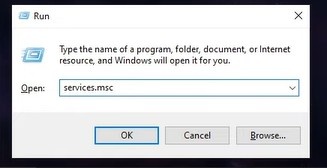
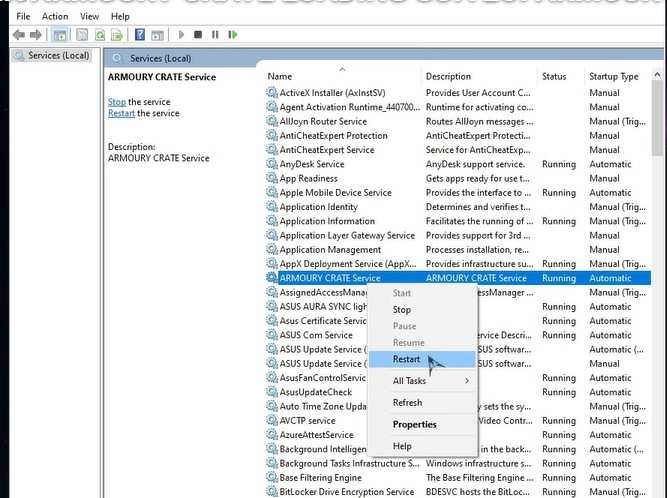
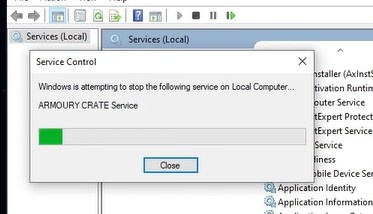
- Services Check: Press Win + R and type services.msc. Find Armoury Crate Service. If it isn't running, right-click and select Start.
- Sync Your Clock: Ensure your Windows time is set to Automatic. If your clock is wrong, the ASUS servers will reject the connection for security reasons.
ASUS Device Not Showing in Armoury Crate Dashboard
The Cause:
It’s mostly because your HAL (Hardware Abstraction Layer) is outdated. Your system cannot identify the hardware yet because the ASUS Armoury Crate software lacks the proper driver kit.
The Solution:
- Unplug and replug: Sometimes the hardware just needs a new handshake with the USB controller.
- Update Center: Launch the Armoury Crate software, tap Settings (gear icon), then Update Center. Click Check for Updates. Please check for any Device Kit or HAL updates and proceed to install them all.
Armoury Crate Installation Failed (Stuck at 55%)
The Cause:
This happens when a previous version of the ASUS Armoury Crate software leaves “ghost files” or registry keys behind.
The Solution:
- The Official Tool: Do not use the Windows uninstaller. Download the Official Armoury Crate Uninstall Tool from the ASUS support site. Run it and reboot before attempting a fresh install.
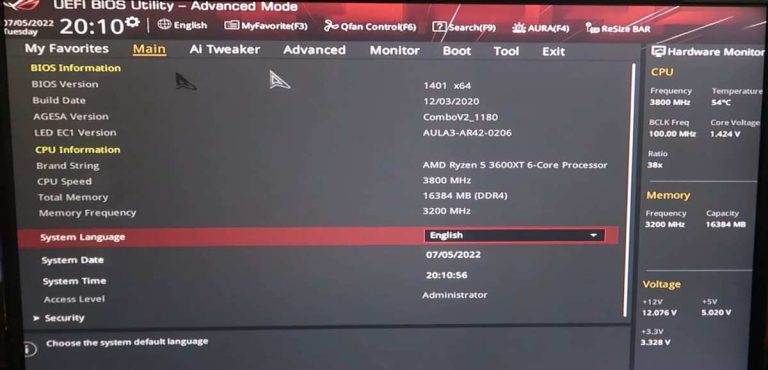
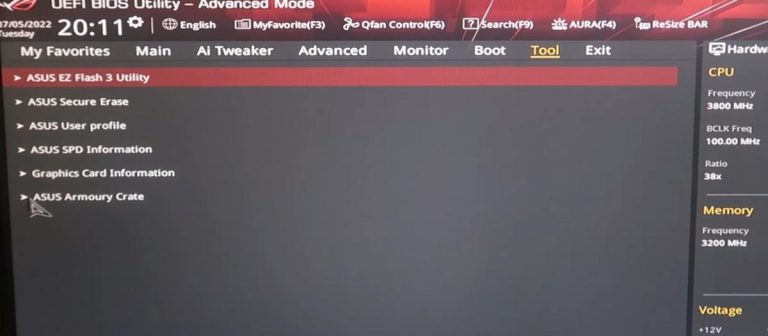
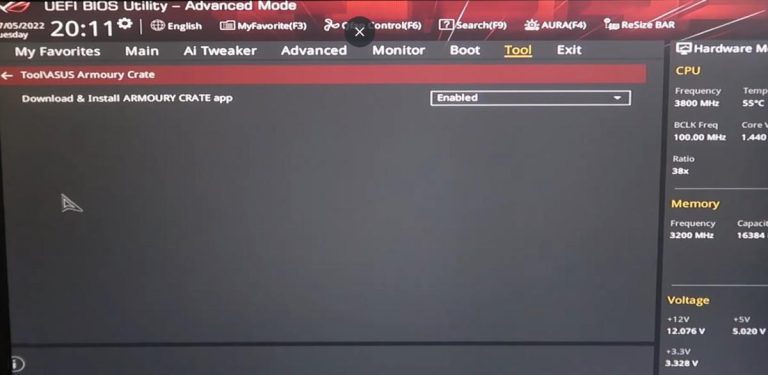
- BIOS Setting: On some motherboards, there is a setting in the Tools tab called Download Armoury Crate. I suggest turning this off before you try to install again to prevent version conflicts.
High CPU Usage by LightingService.exe
The Cause:
The service may run too hard if it is trying to sync too many complex effects across multiple ASUS Armoury Crate-compatible devices.
The Solution:
- Switch to Static: In Aura Sync, change your effect to Static. This stops the CPU from needing to calculate new light patterns every millisecond.
- Repair App: Go to Windows Settings → Apps → Installed Apps. Find Armoury Crate, select the three dots, and click Repair. I saw a significant drop in CPU usage after doing this.
Aura Sync Not Syncing With Motherboard RGB
The Cause:
This is common if your BIOS settings were reset or if a Windows Update disabled the lighting controller.
The Solution:
- Enable in BIOS: Restart your PC and enter the BIOS. Ensure RGB LED lighting is set to On or All On.
- Update Drivers: Visit the ASUS support page for your specific motherboard model and download the latest chipset drivers.
Armoury Crate Crashing After Windows Update
The Cause:
Major Windows updates can break the way the ASUS Armoury Crate software talks to your system drivers.
The Solution:
- Check for hotfixes: Go to the Update Center within the app. ASUS often releases small hotfixes right after a big Windows update.
- Clean Reinstall: Use the Uninstall Tool mentioned in Issue #5 to start fresh. This is often the most reliable way to fix post-update crashes.
Armoury Crate Update Center Grayed Out
The Cause:
This happens when the Armoury Crate software loses its connection to the internet or if you aren’t signed into your profile.
The Solution:
- Sign In: Make sure you are signed into your ROG account inside the app.
- Repair Tool: Navigate to Update Center → Repair if the option is available. Sometimes a simple restart of the computer fixes this too.
Manual Mode Fan Curves Not Applying Correctly
The Cause:
You might have missed the “Save” step, or another background app is fighting for fan control.
The Solution:
- Click the Checkmark: In the Manual Fan menu, you must click the small Apply (checkmark) icon. If you don't click this, the settings will reset.
- Close Other Apps: Make sure apps like MSI Afterburner or Fan Control are closed. They often fight with the ASUS Armoury Crate software for hardware access.
Why These Fixes Work (Expert View)
I have spent years testing these steps on different ROG laptops and TUF desktops. The reason I suggest using the Uninstall Tool over the standard Windows menu is that Armoury Crate is not just one app—it is a collection of over a dozen background services. A standard uninstallation leaves parts of those services behind, which causes the “55% stuck” bug during reinstall.
I also put a lot of focus on the Windows 11 Dynamic Lighting fix. This is a very new issue in the tech world. Many people don’t realize that Microsoft added this feature, and it is a primary reason why RGB is failing for many users this year. By turning it off, you allow the ASUS Armoury Crate software to have full authority over your LEDs again.
Pro-Tips for a Stable Armoury Crate Setup
To keep your rig running smoothly, I recommend these habits:
- Check Updates Weekly: Don't wait for a crash. I find that keeping the HAL files updated prevents most “missing device” errors.
- Keep Your BIOS Updated: ASUS releases BIOS updates that specifically help with software compatibility. Checking them every few months is a smart move.
- Watch Your Temperature: Use the Dashboard tiles to keep an eye on heat. If your fans aren't spinning right, your PC will slow down to protect itself.
When to Contact ASUS Support
We love fixing things ourselves, but sometimes the problem is physical. If you have tried a “clean reinstall” (using the uninstall tool) and your motherboard still isn’t showing up, it might be time to call in the pros.
- You see smoke or smell burning near the RGB headers.
- Your fans make a grinding or clicking noise regardless of the software setting.
- The “No Devices Found” error persists even after a full BIOS reset.
- You see a “Primary Chipset Error" notification in the app.
In such situations, the RGB controller in your motherboard could be faulty. You may require the assistance of ASUS support to initiate an RMA (Return Merchandise Authorization) to repair or replace your parts.
If you have not installed the newest build yet, we recommend downloading the official ASUS Armoury Crate software to ensure full compatibility with Windows 11 and modern hardware.
Last Thoughts
I hope these steps helped resolve your software issues!
Most Armoury Crate problems are just “digital traffic jams.” By syncing your clock, turning off Windows Dynamic Lighting, and using the proper uninstall tool, you can solve the vast majority of these headaches and get back to gaming.
FAQs
Why is Armoury Crate not detecting my motherboard?
This usually comes down to either an outdated HAL driver or a quick trip to your BIOS being needed. You’ve got to make sure “RGB Lighting” is actually toggled on in the BIOS settings. After that, head into the ASUS Armoury Crate software Update Center and make sure every single device kit is current.
Is it safe to uninstall Armoury Crate?
It’s perfectly safe, though you might find your lights reverting to that default “rainbow” wave immediately. You’ll also lose your custom fan profiles. If you do go this route, I highly recommend using that Official Uninstall Tool I mentioned earlier—it’s the only way to make sure no “ghost” services keep eating up your RAM in the background.
Does Armoury Crate affect gaming performance?
Not usually, but if LightingService.exe starts acting up, you might see some tiny stutters in-game. Stick to a “static” light setting and keep the software updated. It really helps keep your FPS steady and your CPU usage low.
How do I get past Error Code 502?
That’s almost always a network hiccup. Double-check that your internet is solid, and try turning off your VPN if you’ve got one running. Also—and this sounds silly but it works—make sure your Windows clock is synced to the right time. If it’s off, the ASUS servers will block you.
Will Armoury Crate work with my Razer or Corsair mouse?
Not really. Armoury Crate is built specifically for the ASUS ecosystem. It can control basic LED strips if they are plugged into your motherboard headers. But for actual gear like a Razer mouse or Corsair RAM, you’ll still need their specific software.